
Nextcloudをアップデートする際に、警告への対処を行うためにいつも自分の投稿を探すことが多いので、カテゴリーを限定した検索ができるようにショートコードを作成してみました。
また、検索結果については、タイトルと抜粋した内容しか表示されていなかったので、検索文字を含む段落等のブロックを表示させることにしました。
Nextcloud関連の検索ページのリンクがまちがっていたのでなおしました。
まずはじめに
設置手順は2つになります。
・ショートコードを新規登録するためにfanction.phpにコードを追記。
・検索結果ページ用のPHPファイルを新規作成
設置ショートコード [my_custom_search cat_id="XX"]
cat_idをXXから指定したいカテゴリーIDに変更するだけ (cat_id=”16″ などに)
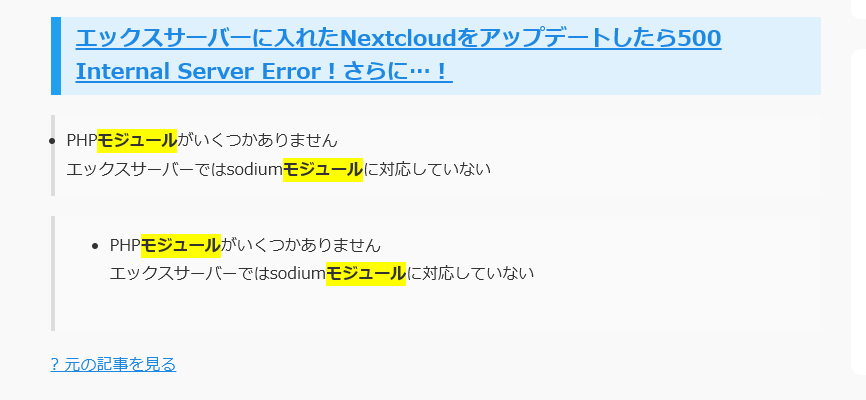
完成ごのカテゴリー指定検索結果ページ
初めに投稿記事タイトル、検索文字を含むブロック、最後にその投稿ページのリンクが表示され、複数のページがある場合には上記内容を繰り返しリストされます。
function.phpにコードを追記
早速下記コードをfunction.phpに追記をします。
黄色い部分の<Style>については好きなようにデザイン変更ください。
Cocoonでサイドバー検索ウィジェット設置している場合、通常の検索バーも表示されて分かりずらくなるのでカテゴリ限定検索結果ページでは通常の検索バーは非表示になるようにしています。(青ハイライト部分)
/*************************
指定カテゴリー内検索(ショートコード対応版・検索結果ページ再検索対応・サイドバー検索非表示対応)
**************************/

/**
 * 指定カテゴリ内に検索を限定(mycatsearch=1 の場合)
 */
function my_shortcode_search_limit_category($query) {
    if ($query->is_search() && $query->is_main_query() && !is_admin()) {

        // カテゴリ限定検索(mycatsearch=1)が付いているか?
        if (isset($_GET['mycatsearch']) && $_GET['mycatsearch'] == '1') {

            // ショートコードや検索結果ページからもらった cat_id
            if (!empty($_GET['cat_id'])) {

                // 複数 ID にも対応(例:5,7)
                $cat_ids = array_map('intval', explode(',', $_GET['cat_id']));

                $query->set('category__in', $cat_ids);
            }
        }
    }
}
add_action('pre_get_posts', 'my_shortcode_search_limit_category');


/**
 * カテゴリ限定検索結果ページのフォームだけ置き換え
 */
function my_custom_search_form_override($form) {

    // 条件:カテゴリ限定検索 & search-category.php を使用しているページ
    if (is_search() && isset($_GET['mycatsearch']) && $_GET['mycatsearch'] == '1'
        && !empty($_GET['cat_id'])
        && basename(get_page_template()) === 'search-category.php') {

        $cat_id = esc_attr($_GET['cat_id']);
        $s      = isset($_GET['s']) ? esc_attr($_GET['s']) : '';

        // カテゴリ固定の検索フォームを返す
        $form = '
        <form role="search" method="get" action="' . esc_url(home_url('/')) . '">
            <input type="search" name="s" placeholder="キーワードを入力" value="' . $s . '">
            <input type="hidden" name="mycatsearch" value="1">
            <input type="hidden" name="cat_id" value="' . $cat_id . '">
            <button type="submit">検索</button>
        </form>';
    }

    return $form;
}
add_filter('get_search_form', 'my_custom_search_form_override');


/**
 * ショートコード:カテゴリ限定検索フォーム(中央配置・横並び・レスポンシブ対応)
 * 使用例:[my_custom_search cat_id="5"]
 */
function my_custom_search_shortcode($atts) {

    $atts = shortcode_atts(
        array(
            'cat_id' => '',
        ),
        $atts,
        'my_custom_search'
    );

    $cat_id = esc_attr($atts['cat_id']);

    // フォーム生成
    ob_start(); ?>
    <form class="category-search" role="search" method="get" action="<?php echo esc_url(home_url('/')); ?>">
        <input type="search" name="s" placeholder="キーワードを入力">
        <?php if (!empty($cat_id)) : ?>
            <input type="hidden" name="mycatsearch" value="1">
            <input type="hidden" name="cat_id" value="<?php echo $cat_id; ?>">
        <?php endif; ?>
        <button type="submit">検索</button>
    </form>

    <style>
    /* ------- ショートコード用検索フォーム:中央配置、横並び ------- */
    .category-search {
        display: flex;
        max-width: 400px;          /* フォーム全体の最大幅 */
        width: 100%;
        margin: 0 auto 20px auto;  /* 中央寄せ + 下余白 */
        gap: 5px;                  /* 入力欄とボタンの間隔 */
    }

    /* 入力欄 */
    .category-search input[type="search"] {
        flex: 1;
        padding: 6px 10px;
        font-size: 16px;
        box-sizing: border-box;
    }

    /* ボタン */
    .category-search button {
    background-color: #0073aa;
    color: #fff;
    border: none;
    padding: 8px 16px;
    border-radius: 4px;
    cursor: pointer;
    font-size: 14px;
    display: inline-block;
    white-space: nowrap;
    }
.category-search button:hover {
    background-color: #005f8d;
}
    /* ------- スマホでは縦並びに変更 ------- */
    @media (max-width: 480px) {
        .category-search {
            flex-direction: column;
        }
        .category-search button {
            width: 100%;
        }
    }
    </style>
    <?php
    return ob_get_clean();
}
add_shortcode('my_custom_search', 'my_custom_search_shortcode');


/**
 * mycatsearch=1 のときだけ search-category.php を強制使用
 */
function my_select_search_template($template) {
    if (isset($_GET['mycatsearch']) && $_GET['mycatsearch'] == '1') {

        $custom_template = locate_template('search-category.php'); // カスタムテンプレート

        if (!empty($custom_template)) {
            return $custom_template;
        }
    }

    return $template; // 通常検索はそのまま
}
add_filter('template_include', 'my_select_search_template');


/**
 * サイドバー検索ウィジェットをカテゴリ限定検索結果ページのみ非表示
 */
function my_hide_sidebar_search_widget($sidebars_widgets) {

    if (is_search() && isset($_GET['mycatsearch']) && $_GET['mycatsearch'] == '1') {

        if (isset($sidebars_widgets['sidebar'])) {
            foreach ($sidebars_widgets['sidebar'] as $key => $widget_id) {

                // 検索ウィジェット(WP_Widget_Search)のみ削除
                if (strpos($widget_id, 'search') !== false) {
                    unset($sidebars_widgets['sidebar'][$key]);
                }
            }
        }
    }

    return $sidebars_widgets;
}
add_filter('sidebars_widgets', 'my_hide_sidebar_search_widget');検索結果ページ用にsearch-category.phpを作成
通常の検索結果ページとは表示仕方を変更したいため、新たにカテゴリー指定の検索結果ページを作成するためにsearch-category.phpを新たに作成し、子テーマなどに設置します。
黄色い部分の<Style>については好きなようにデザイン変更ください。
<?php get_header(); ?>

<?php
$keyword        = get_search_query();
$highlight      = isset($_GET['hl']) ? $_GET['hl'] == '1' : true; // デフォルトON
$is_cat_limited = isset($_GET['mycatsearch']) && $_GET['mycatsearch'] == '1';
$cat_id         = isset($_GET['cat_id']) ? intval($_GET['cat_id']) : ''; // ★ カテゴリーID受け取り

/**
 * Gutenberg ブロックから検索ワードを含むブロックだけを抽出する
 */
function get_matching_blocks($blocks, $keyword, $highlight = false) {
    $matched = [];

    foreach ($blocks as $block) {

        // ネストされたブロックもチェック
        if (!empty($block['innerBlocks'])) {
            $matched = array_merge($matched, get_matching_blocks($block['innerBlocks'], $keyword, $highlight));
        }

        // ブロックそのものに一致があるか
        $html = render_block($block);
        $plain = strip_tags($html);

        if (stripos($plain, $keyword) !== false) {

            // ハイライト処理
            if ($highlight && !empty($keyword)) {
                $escaped = preg_quote($keyword, '/');
                $html = preg_replace(
                    "/($escaped)/i",
                    '<span class="search-highlight">$1</span>',
                    $html
                );
            }

            $matched[] = $html;
        }
    }

    return $matched;
}
?>

<div class="article">

<h1 class="entry-title">検索結果:「<?php echo esc_html($keyword); ?>」</h1>

<?php if ($is_cat_limited) : ?>

    <!-- ★ カテゴリ限定検索フォーム(検索結果ページ用) -->
    <div class="custom-search-form" style="margin:20px 0;">
        <form role="search" method="get" action="<?php echo home_url('/'); ?>">
            <input type="search" name="s" class="mysearch-input" placeholder="キーワードを入力" value="<?php echo esc_attr($keyword); ?>">

            <!-- カテゴリ限定検索のフラグ -->
            <input type="hidden" name="mycatsearch" value="1">

            <!-- ★ カテゴリーIDも引き継ぐ -->
            <?php if ($cat_id) : ?>
                <input type="hidden" name="cat_id" value="<?php echo esc_attr($cat_id); ?>">
            <?php endif; ?>

            <!-- ハイライト引き継ぎ -->
            <?php if ($highlight): ?>
                <input type="hidden" name="hl" value="1">
            <?php else: ?>
                <input type="hidden" name="hl" value="0">
            <?php endif; ?>

            <button type="submit" class="mysearch-btn">検索</button>
        </form>

        <!-- ハイライト切替 -->
        <div style="margin-top:10px;">
        <?php if ($highlight): ?>
            <a class="button" href="<?php echo esc_url(add_query_arg('hl', '0')); ?>">ハイライト:OFFにする</a>
        <?php else: ?>
            <a class="button" href="<?php echo esc_url(add_query_arg('hl', '1')); ?>">ハイライト:ONにする</a>
        <?php endif; ?>
        </div>
    </div>

<?php endif; ?>

<?php if (have_posts()) : ?>

    <?php while (have_posts()) : the_post(); ?>

        <?php
        $blocks = parse_blocks(get_the_content());
        $matched_blocks = get_matching_blocks($blocks, $keyword, $highlight);
        ?>

        <?php if (!empty($matched_blocks)) : ?>
            <div class="search-result-item">

                <h2 class="search-post-title">
                    <a href="<?php the_permalink(); ?>"><?php the_title(); ?></a>
                </h2>

                <div class="matched-blocks">
                    <?php foreach ($matched_blocks as $html) : ?>
                        <div class="matched-block"><?php echo $html; ?></div>
                    <?php endforeach; ?>
                </div>

                <p class="search-post-link">
                    <a class="button" href="<?php the_permalink(); ?>">? 元の記事を見る</a>
                </p>

            </div>
        <?php endif; ?>

    <?php endwhile; ?>

<?php else : ?>

    <p>該当する記事がありませんでした。</p>

<?php endif; ?>

</div>

<style>
.matched-block {
    padding: 12px;
    background: #fafafa;
    border-left: 4px solid #ddd;
    margin: 20px 0;
}
.search-highlight {
    background: yellow;
    font-weight: bold;
}
.search-result-item {
    margin-bottom: 40px;
    border-bottom: 1px solid #eee;
    padding-bottom: 30px;
}

/* ★ 共通の検索ボタンデザイン */
.mysearch-btn {
    background-color: #0073aa;
    color: #fff;
    border: none;
    padding: 8px 16px;
    border-radius: 4px;
    cursor: pointer;
    font-size: 14px;
    display: inline-block;
    white-space: nowrap;
}
.mysearch-btn:hover {
    background-color: #005f8d;
}

/* ★ 検索窓(共通) */
.mysearch-input {
    width: 200px;
    max-width: 100%;
    padding: 6px 10px;
    border: 1px solid #ccc;
    border-radius: 4px;
}


/* ★ 検索結果ページの見出し(H2/H3/H4)の高さを強制調整 */
.search-result-item h2,
.search-result-item h3,
.search-result-item h4,
.search-result-item .matched-block h2,
.search-result-item .matched-block h3,
.search-result-item .matched-block h4 {
    margin-top: 6px !important;
    margin-bottom: 6px !important;
    line-height: 1.5 !important;
        padding-top: 6px !important;
    padding-bottom: 6px !important;
}

</style>

<?php get_footer(); ?>
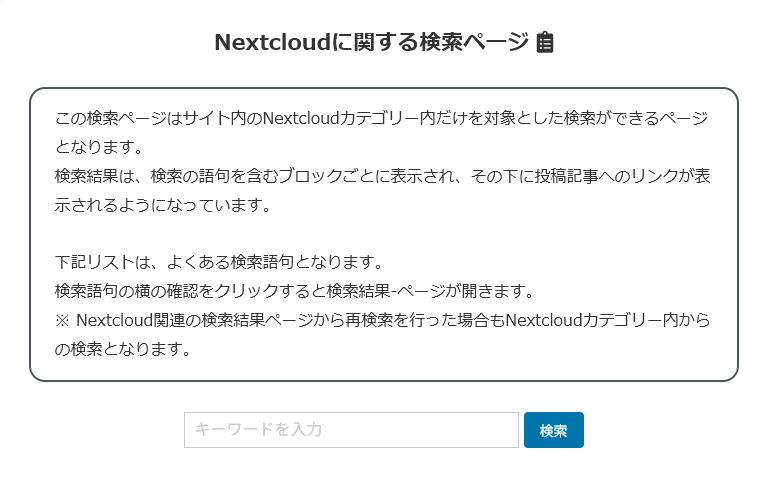
ここまで出来たらカテゴリー別検索を設置したいところにショートコードを設置すれば完了です。
今回は固定ページにNextcloud に関する検索ページを作成し、そこに設置してみました。
リンクはこちら
さいごに
検索を行う際にドロップダウンメニューでカテゴリー選択をできるようにとも考えたのですが、今回はNextcloud 関連に特化した検索ページを作成したかったので、初めからカテゴリー指定をすることにしまた。
少しでも参考になればと思ます。
コメント